Are you facing trouble in compiling and running Java program in your Windows 7 machine through
Command Prompt? That's too after installing the JDK? If yes, then you might be missing on setting the environment for compiling and running Java program in your machine. Well, no need to worry about that. Here I will am listing down a few simple steps, by following them, you will be able to compile and run
Java programs in your machine:
Setting Permanent Java Path in Windows 7
First of all, make sure you have installed the latest version of the JDK. You can download the latest version of JDK from here. Once you have downloaded and installed the latest JDK, you need to set up the environment variable (that is actually the Java path :) ) to be able to compile and run the
Java programs using
Command Prompt.
- On the desktop, Right Click on My Computer icon and select Properties.
- Next, click on the Advanced tab and click on Environment Variables button. (Refer the screen shot below)
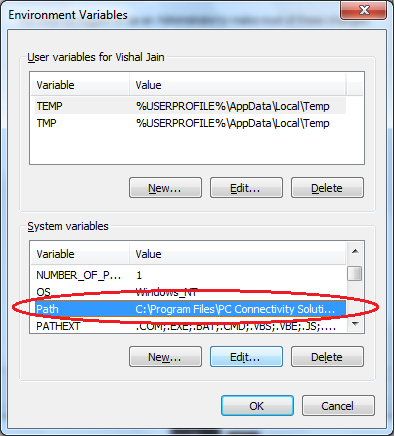
- One more pop-up will open. From the System Variable list, select PATH and click on edit. (Refer the screen shot below)
- One more small pop-up will come out. There are two input boxes, one for Variable name and the other for Variable value (Refer the screen shot below)
- In the variable value box, add an semi-colon (;) at the end, if it is not there already. Otherwise skip this step.
- Now, find the JDK installation directory in your machine and add it to in the end in this field. The ideal JDK installation directory will be like below:
C:\Program Files\Java\jdk1.7.0\bin
- The highlighted part will be the actual JDK version installed on your machine.
- That's all. Now, click on OK button one-by-one on all pop-ups and you are done. It is advised to re-start the machine after setting any Environment variable, thought it will work without re-starting the machine.
- If you are still facing any issues, feel free to put a comment. I'll be happy to help you.
- Happy Coding :)
If you find this guide helpful, do share with others, and help. And also, sharing is caring.